

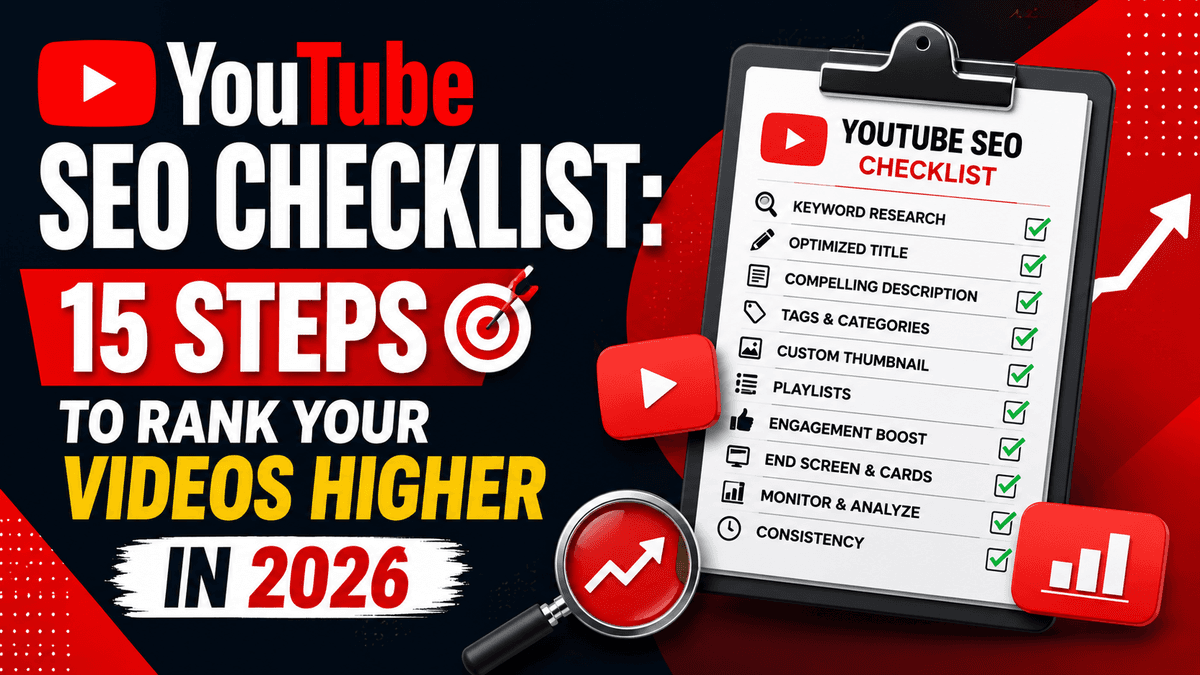
YouTube SEO Checklist: 15 Steps to Rank Your Videos Higher in 2026
Published: 2026-07-08 12:13:35
Over 500 hours of video are uploaded to YouTube every single minute. That's the scale you're competing against every time you hit "publish." The good news? Most creators and brands still skip basic optimization — which means a properly executed YouTube SEO checklist can put you ahead of the pack fast.
This guide walks through every stage of the process: keyword research, on-page optimization, thumbnails, engagement signals, and what to do after your video goes live. Use it as a repeatable checklist before every upload.
What Is YouTube SEO?
YouTube SEO is the process of optimizing your videos and channel so they rank higher in YouTube search results and get recommended more often in suggested feeds. It combines traditional keyword optimization (titles, descriptions, tags) with engagement signals like watch time, click-through rate, and audience retention — the same fundamentals we cover in our broader SEO services and keyword research work at Promfly.
Ready to dig in? Here's the full 15-point checklist.
1. Do YouTube Keyword Research First
Before you script or film anything, find out what your audience is actually searching for.
- Use YouTube's autocomplete/suggest feature by typing partial phrases into the search bar
- Check your YouTube Analytics research report for terms already driving views to your channel
- Review competitor videos ranking for your target topics
- Build a list of primary and long-tail keyword variations, then assign one clear target keyword per video
Skipping this step is the single biggest reason otherwise well-produced videos never get discovered. For a deeper walkthrough of this stage, see our complete guide to YouTube tags.
2. Name Your Video File With Your Target Keyword
Before uploading, rename your video file to include your target keyword (e.g., youtube-seo-checklist-2026.mp4 instead of final_v3_edit.mov). YouTube's system reads the file name as an early relevance signal, so this small step is worth the extra ten seconds.
3. Optimize Your Video Title
Your title needs to satisfy two audiences at once: YouTube's algorithm and a human scrolling past dozens of thumbnails.
- Place your target keyword near the beginning of the title
- Keep it to roughly 50–60 characters so it isn't truncated in search results
- Make the value obvious — what will the viewer get or learn?
- Avoid clickbait that doesn't match the content; it hurts retention and trust over time
4. Write a Keyword-Rich, Front-Loaded Description
Descriptions can run up to 5,000 characters, but only the first ~150 characters show before "Show more" — so front-load your keyword and hook there.
- Use your target keyword naturally in the first two sentences
- Work in 2–3 related keyword variations throughout the rest of the description
- Add a timestamped outline (chapters) for longer videos
- Include relevant links to your channel, website, or related content
- Add hashtags at the end — but stay at 15 or fewer, since YouTube ignores all hashtags on a video once you exceed that limit
5. Tag Your Video Strategically
Tags carry less ranking weight than titles or descriptions, but they still help YouTube understand context and correct for title misspellings.
- Stay within the 500-character total limit
- Use 5–8 tags: your primary keyword, a few close variations, one or two broader category tags, and a branded tag
- Don't stuff irrelevant high-traffic tags — it can hurt more than help
We go deeper on tag strategy, character limits, and common mistakes in our YouTube tags and hashtags best practices post.
6. Choose the Right Video Category
Selecting an accurate category in the upload details helps YouTube group your content correctly for recommendations. It won't single-handedly boost rankings, but it feeds the algorithm useful context about where your video fits.
7. Upload a Custom Thumbnail
Thumbnails are arguably your biggest click-through driver. A generic auto-generated frame rarely competes with a designed thumbnail.
- Use high contrast colors that stand out in a crowded feed
- Keep on-image text to 3–5 words, large and legible on mobile
- Show faces or emotion where relevant — it consistently improves CTR
- Stay visually consistent across your channel so returning viewers recognize your content
- Never mislead — a thumbnail that oversells the video tanks retention, which hurts long-term ranking
8. Add Captions and Subtitles
Captions make your content accessible and give YouTube's crawler more text to index. Subtitles extend your reach to non-native speakers. Upload your own accurate transcript file rather than relying solely on auto-captions when possible — accuracy affects both accessibility and watch time.
9. Add Video Chapters (Timestamps)
Chapters break long videos into clickable sections, improving user experience and giving you extra opportunities to include keyword-rich chapter titles. These can also surface directly in Google search results, letting users jump to the exact moment that answers their query.
10. Use Cards, End Screens, and Playlists to Boost Watch Time
- Cards point viewers to related videos, playlists, or links during playback
- End screens promote your next video or a subscribe action once the current one finishes
- Playlists auto-play related content, increasing session watch time — one of YouTube's strongest ranking signals
11. Add a Clear Call-to-Action
Ask viewers to like, comment, and subscribe — verbally, on-screen, and in the description. This isn't just for vanity metrics; engagement signals directly influence how often YouTube recommends your video to new viewers.
12. Promote Your Video Beyond YouTube
Share the video on social channels, embed it in relevant blog posts, and send it to your email list. External traffic and backlinks to a video both act as trust signals, similar to how backlinks work for standard web pages. If you're deciding where to focus distribution effort across platforms, our post on Instagram, LinkedIn, or YouTube breaks down which channel fits which content type.
13. Reply to Comments Early
Respond to comments within the first 24–48 hours after publishing. Early engagement tells YouTube the video is generating a real audience reaction, which can influence how aggressively it gets pushed into suggested feeds.
14. Set Channel-Level Keywords
Beyond individual videos, YouTube also evaluates your channel's overall theme. Add 5–10 relevant channel keywords under YouTube Studio → Settings → Channel → Basic Info to help your entire channel surface in relevant searches and suggested feeds — not just single videos.
15. Monitor Analytics and Update Old Content
SEO isn't a one-time task. Regularly check:
- Watch time and audience retention to see where viewers drop off
- Traffic sources (search vs. suggested vs. external)
- Click-through rate on thumbnails and titles
Use this data to update older videos — refresh titles, descriptions, tags, or thumbnails on underperforming content instead of always starting from scratch. For channel-wide growth strategy beyond this checklist, see our guide on how to increase YouTube views and our broader breakdown of YouTube SEO for maximum growth.
Quick Pre-Publish Checklist
Before you hit publish, confirm:
- [ ] Target keyword identified and used in file name, title, and description
- [ ] Title is 50–60 characters with keyword near the front
- [ ] Description front-loaded with keyword in first 150 characters
- [ ] 5–8 relevant tags within the 500-character limit
- [ ] Custom thumbnail uploaded (high contrast, minimal text)
- [ ] Captions/subtitles added
- [ ] Chapters added for videos over 5 minutes
- [ ] 15 or fewer hashtags in the description
- [ ] Cards, end screen, and playlist assigned
- [ ] Video shared across social channels and embedded where relevant
Frequently Asked Questions
1. How many tags should I use on a YouTube video?
Use 5–8 relevant tags within YouTube's 500-character total limit. Tags help with context and misspelling correction more than direct ranking.
2. What's the ideal YouTube video title length?
Aim for 50–60 characters so your title isn't cut off in search results or suggested feeds, with your target keyword placed near the beginning.
3. How many hashtags can I use in a YouTube description?
Up to 15. Exceeding that limit causes YouTube to ignore all hashtags on that video, not just the extras.
4. Do YouTube tags actually affect ranking?
Not directly. Tags mainly help YouTube correct for common misspellings of your title. Titles, descriptions, thumbnails, and watch time carry far more ranking weight.
5. How often should I update old YouTube videos for SEO?
Review your top and underperforming videos every few months using YouTube Analytics, and refresh titles, descriptions, tags, or thumbnails where data shows an opportunity — rather than leaving evergreen content untouched indefinitely.
6. Does embedding YouTube videos on my website help SEO?
Yes. Embedding drives additional views and watch time back to your video, which signals value to YouTube's algorithm, while also potentially increasing time-on-page for your own site's SEO.
Want Expert Help With Your YouTube SEO?
Our team is ready to assist you. Fill out the form and we'll get back to you promptly.
Call Us: +91 7303881503 Email Us: info@promfly.com Visit Us: 2/81-82, Ground Floor, Lalita Park, Gali No - 2, Laxmi Nagar, New Delhi - 110092
Explore more on Promfly's blog or check our full range of digital marketing services.